Plugins
Navidrome supports a plugin system that allows you to extend its functionality with community-developed extensions. Plugins run in a secure WebAssembly sandbox, providing isolation from the main application while enabling powerful customizations.
What Plugins Can Do
Plugins can extend Navidrome in several ways:
- Metadata Agents: Fetch artist biographies, album information, and images from external sources
- Scrobblers: Send your listening history to external services beyond the built-in Last.fm and ListenBrainz support
- Scheduled Tasks: Run periodic background tasks
- Event Handlers: React to events like playback or library changes
Each plugin declares which capabilities it provides, and you can enable only the plugins you need.
Finding Plugins
Community-developed plugins can be found on GitHub using the navidrome-plugin topic.
When evaluating a plugin, consider:
- Repository activity: Check when the plugin was last updated
- Documentation: Look for clear installation and configuration instructions
- Issues and discussions: Review any reported problems or user feedback
- Source code: Plugins are open source, so you can review the code before installing
Third-Party Code
Unless otherwise stated, plugins are not developed or maintained by the Navidrome team. Install plugins only from sources you trust, and review the plugin’s permissions and documentation carefully.Installing Plugins
Download the plugin: Go to the plugin’s GitHub repository and download the
.ndpfile from the Releases page.Place in plugins folder: Copy the
.ndpfile to your plugins directory:- Default location:
<DataFolder>/plugins - Custom location: Set
Plugins.Folderin your configuration
- Default location:
Rescan for plugins: Click the “Rescan” button in the Plugins section of the web UI, or if you have
Plugins.AutoReload = trueconfigured, the plugin will be detected automatically.Enable the plugin: Go to the Navidrome web UI, navigate to the Plugins section in the admin area, and enable the plugin.
Configure the plugin: Some plugins require additional configuration. Check the plugin’s documentation for required settings.
Server Configuration
The following configuration options control the plugin system:
Example Configuration
[Plugins]
Enabled = true
Folder = "/path/to/plugins"    # Optional: custom plugins folder
AutoReload = true              # Useful during development/testing
LogLevel = "debug"             # Enable detailed plugin logging
CacheSize = "200MB"            # WASM compilation cache size
Or using environment variables (useful for Docker):
ND_PLUGINS_ENABLED=true
ND_PLUGINS_FOLDER=/data/plugins
ND_PLUGINS_AUTORELOAD=true
ND_PLUGINS_LOGLEVEL=debug
Managing Plugins in the Web UI
Once plugins are installed, you manage them through the Navidrome web interface:
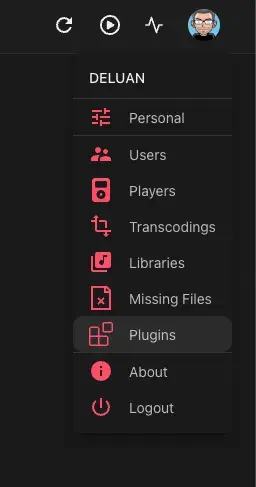
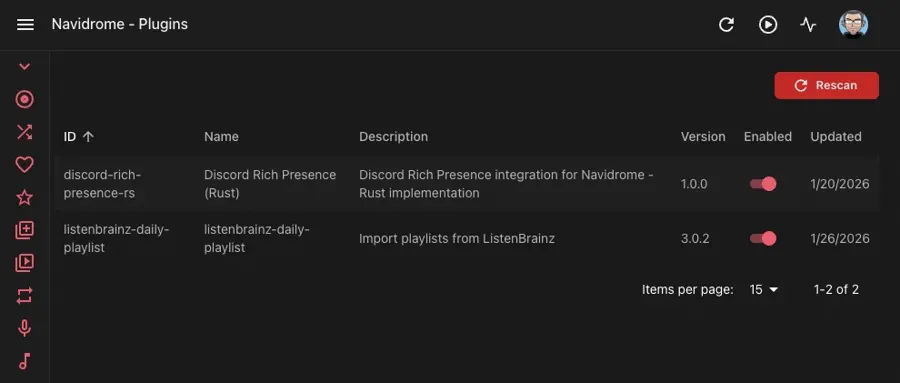
Viewing Installed Plugins
Navigate to the Plugins section in the admin area to see all installed plugins. Each plugin shows its name, description, version, and current status.
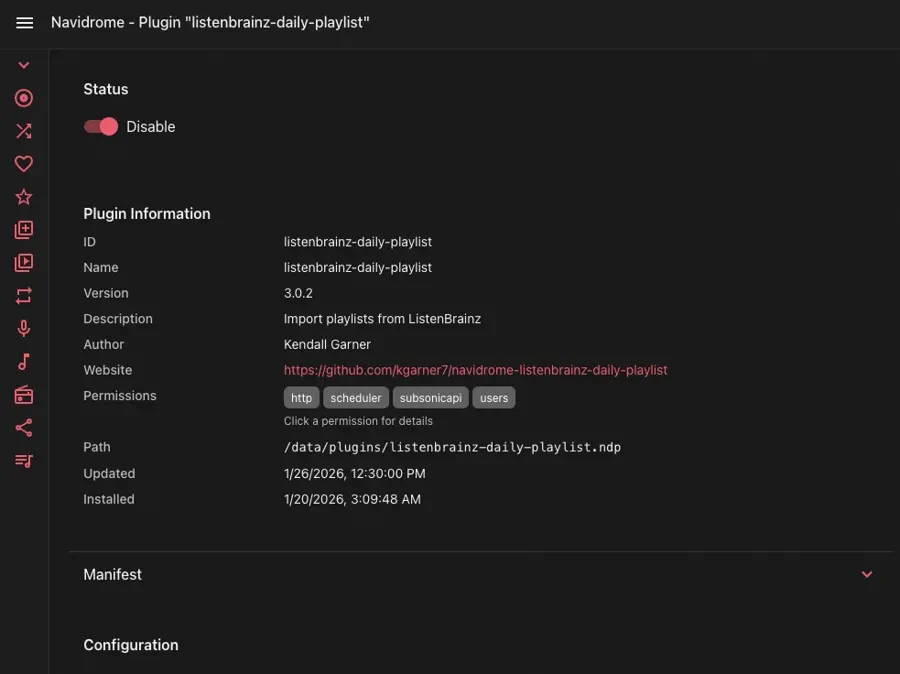
Enabling and Disabling Plugins
Toggle individual plugins on or off. Disabled plugins remain installed but won’t run.
Configuring Plugin Settings
Many plugins have configurable options. Click on a plugin to view and modify its settings. The available options depend on what the plugin supports - check the plugin’s documentation for details on each setting.
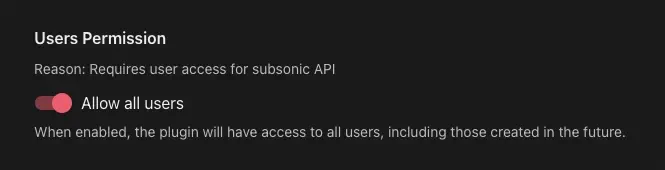
User Access
Some plugins are user-scoped, meaning they operate on a per-user basis (like scrobblers). For these plugins, you need to configure which users have access:
- All users: Grant access to every user
- Specific users: Select individual users who can use the plugin
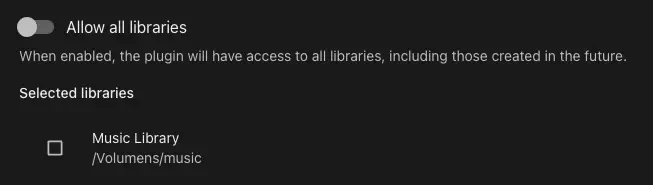
Library Access
Plugins that interact with your music library may need library access configured:
- All libraries: Grant access to all libraries
- Specific libraries: Select which libraries the plugin can access
Security
WebAssembly Sandbox
All plugins run inside a WebAssembly (WASM) sandbox provided by the Extism runtime. This means:
- Plugins cannot directly access your filesystem (except explicitly granted library paths)
- Network access is restricted to hosts declared in the plugin’s manifest
- Plugins are isolated from each other and from Navidrome’s internal systems
Permission System
Each plugin declares the permissions it needs in its manifest:
- HTTP access: Which external hosts the plugin can contact
- Storage: Whether the plugin can store persistent data
- Library access: Whether the plugin needs to read your music files
- User access: Whether the plugin operates on a per-user basis
Review these permissions before enabling a plugin to understand what it can access.
Best Practices
- Only install plugins from trusted sources
- Review the plugin’s source code if you have concerns
- Start with plugins disabled and enable them one at a time
- Monitor your logs after enabling new plugins
- Keep plugins updated to get security fixes
Troubleshooting
Plugin Not Appearing
- Verify the
.ndpfile is in the correct plugins folder - Check that
Plugins.Enabled = truein your configuration - Click the “Rescan” button in the Plugins section to detect new plugins
- Check logs for any errors during plugin discovery
Plugin Won’t Enable
- Check the Navidrome logs for error messages
- Verify all required permissions are configured (users, libraries)
- Ensure the plugin’s configuration requirements are met
- Try setting
Plugins.LogLevel = "debug"for more detailed logs
Configuration Issues
- Refer to the plugin’s documentation for required settings
- Check that configuration values match the expected format
- Look for validation errors in the logs
Checking Logs
Enable debug logging for plugins to troubleshoot issues:
[Plugins]
LogLevel = "debug" # or "trace" for more verbosity
Plugin-related log messages will contain plugin=<plugin-name> in them, making it easy to filter and identify issues.
Feedback
Was this page helpful?
Glad to hear it! Please tell us how we can make it even better.
Sorry to hear that. Please tell us how we can improve.